Attendance Tracking Guide
This guide explains how to record attendance and review attendance history for classes and students.
Taking Attendance
You can take attendance for the current day by clicking on the “Take Attendance” button on the Dashboard, on the Classes page, or on the class details page.
This will open the attendance tracking utility, where you can mark attendance for the selected class:
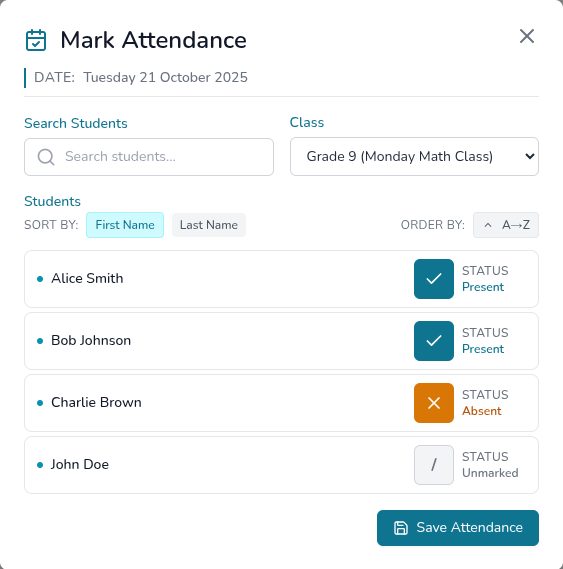
From the Dashboard
- Click on “Dashboard” in the sidebar
- Click on the Quick Actions menu
- Click on “Mark Attendance”
- Select the class from the list
- Mark students present or absent
- Click “Save” to save your attendance
From the Classes Page
- Click on “Classes” in the sidebar
- Click on the class you want to take attendance for
- Click on “Attendance” tab
- Click on “Mark Attendance”
- Mark students present or absent
- Click “Save” to save your attendance
From the Class Details Page
- Click on “Classes” in the sidebar
- Click on the class you want to take attendance for
- Click on “Attendance” tab
- Click on “Mark Attendance”
- Mark students present or absent
- Click “Save” to save your attendance
Attendance History
You can review the attendance history for a class or for a student.
For a Class
To view attendance history for a class, follow these steps:
- Click on “Classes” in the sidebar.
- Click on the class you want to review.
- Click on the “Attendance” tab.
- Navigate through the calendar to view the attendance history for the selected day.
For a Student
- Click on “Students” in the sidebar
- Click on the student you want to review the attendance history for
- Click on “Attendance” tab
- Navigate through the calendar to view the attendance recorded for the selected day.